Direct answer
Add CodeNodex as an OpenAI-compatible model provider in Dify, then validate provider credentials, model capabilities, and application execution separately.
What this guide helps you solve
Explain how to install and configure the OpenAI API-compatible provider in Dify, while clarifying that Dify is not a supported CodeNodex CLI `--client` target.
Prepare the Dify workspace and model information
Dify manages model credentials through Model Providers in the workspace. The CodeNodex CLI has no dify client mode, so enter the configuration manually in Dify.
Prepare an OpenAI-group API key, the API endpoint https://token.codenodex.com/v1, and an exact model ID. For self-hosted Dify, also confirm that the container network can reach this HTTPS address.
curl --fail-with-body "https://token.codenodex.com/v1/models" -H "Authorization: Bearer YOUR_API_KEY"Add the OpenAI API-compatible provider
Open Model Providers in Workspace Settings, then install or open the OpenAI API-compatible provider. Menu names can change across Dify and plugin versions, but the essential fields remain the endpoint, API key, and model.
Enter the protocol root as the endpoint, not a single API method URL. Choose LLM or Chat Model as the model type, and use a Model Name returned by the model list.
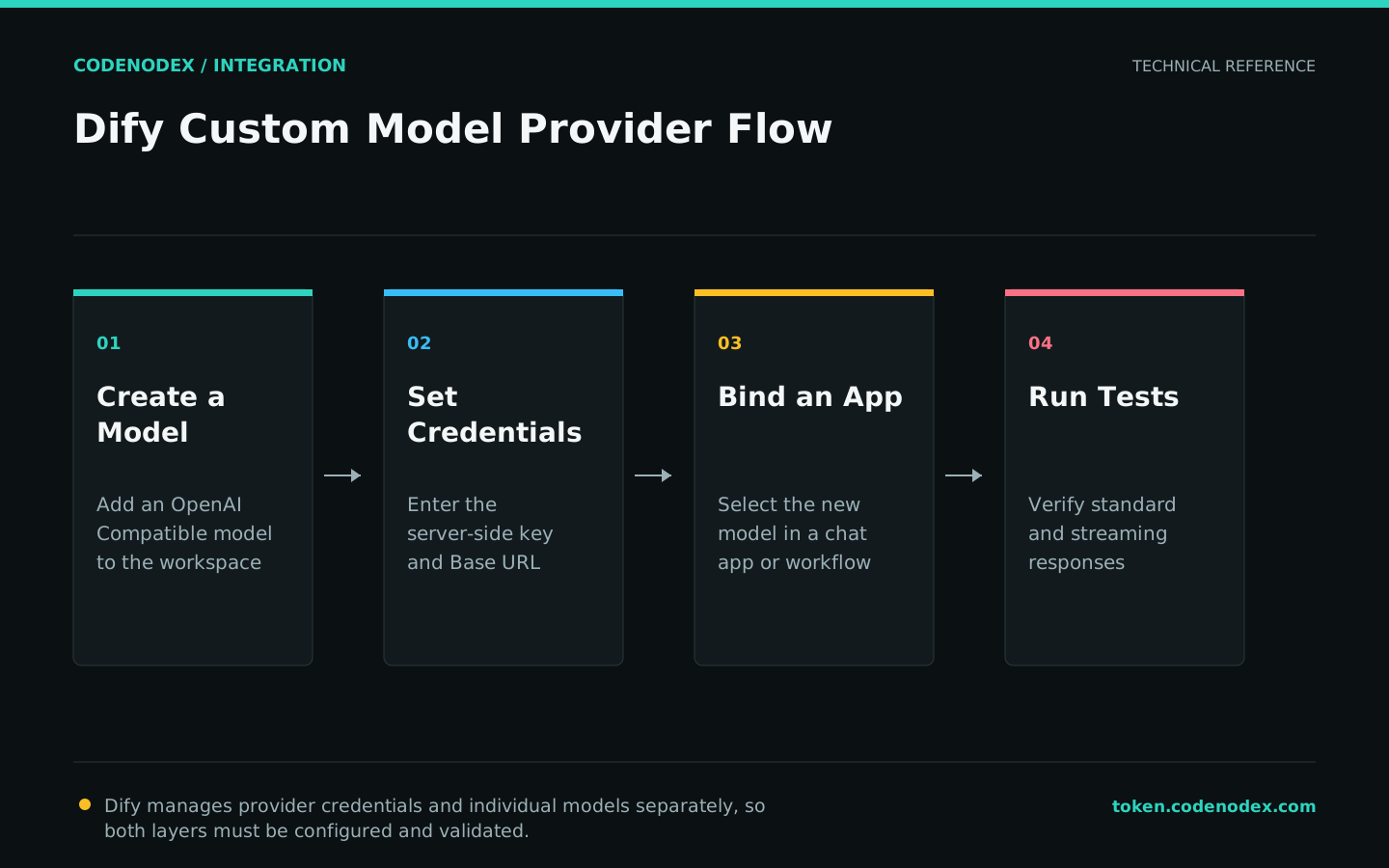
- 01Open the providerGo to Model Providers in the workspace and choose OpenAI API-compatible.
- 02Save credentialsSet Endpoint to
https://token.codenodex.com/v1and enter the CodeNodex API key. - 03Add a modelUse the exact ID returned by
/modelsas Model Name and choose LLM as Model Type. - 04Run validationUse Dify's credential validation and retain the HTTP status if it fails.
Set model capabilities and parameter boundaries
Temperature, maximum output, and context length must match the actual model capabilities. If they are unknown, start with Dify defaults to avoid truncating responses with an incorrect manual limit.
Do not infer function calling, structured output, multimodal input, or other capabilities solely from the OpenAI Compatible label. Validate each feature against the target model and current gateway protocol before using it in workflow nodes.
Validate with a minimal Dify application
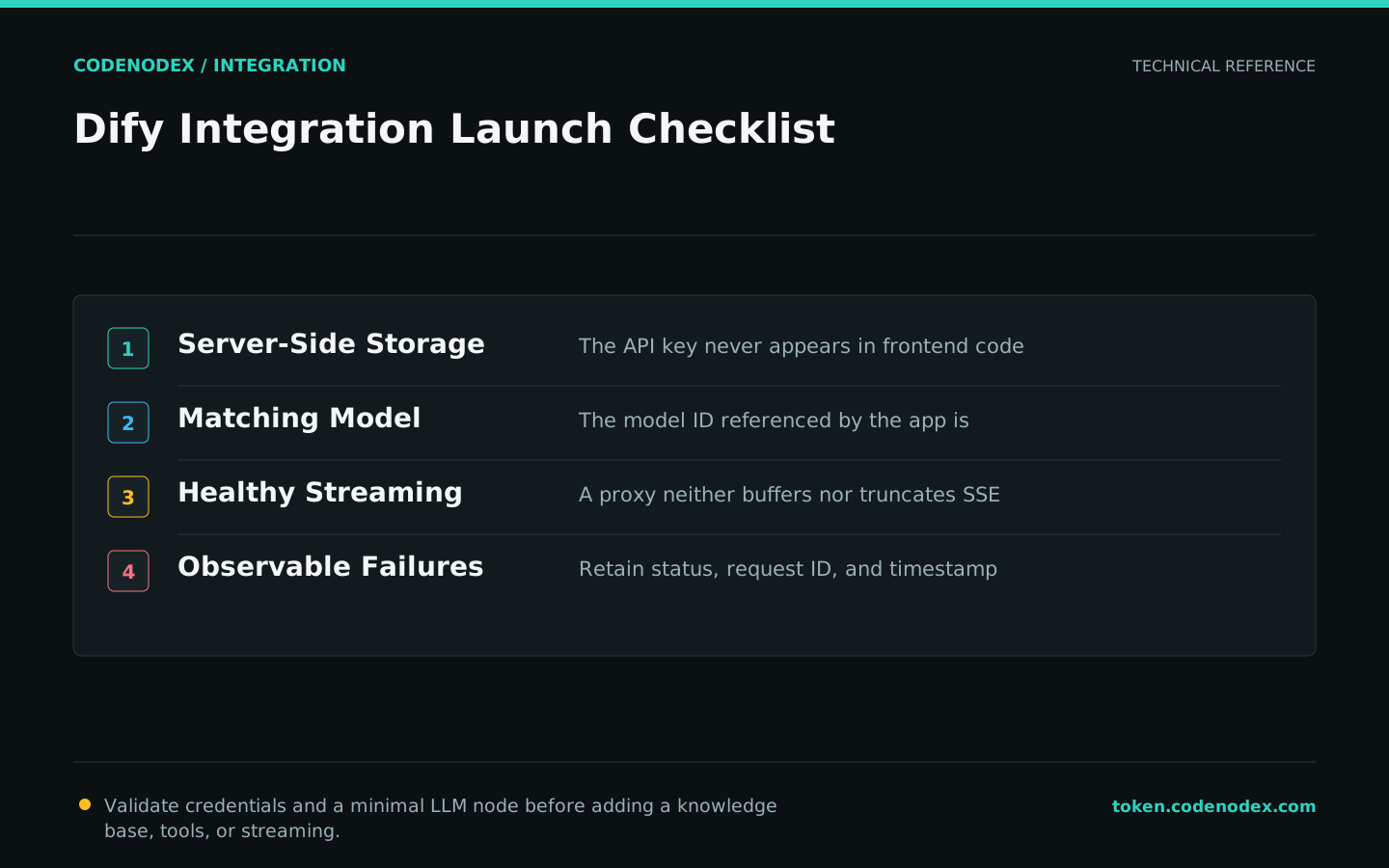
Create a test application containing only user input and an LLM node. Select the model you just added and run one short question. Do not introduce a knowledge base, agent tools, or complex variables yet.
Confirm the model name, latency, and error code in Dify execution logs, then compare the CodeNodex usage record. Add streaming, a knowledge base, and tool calls one at a time afterward.
- Provider credential validation passes.
- The minimal LLM node returns complete text.
- The timestamps in Dify logs and CodeNodex usage agree.
- Advanced capabilities are enabled and regression-tested individually.
Troubleshoot credential validation and runtime errors
For 401, check the API key. For 404, check whether the endpoint duplicates /v1 or the Model Name is missing. For 429, check balance and concurrency. For connection timeouts, test DNS, TLS, and outbound networking from inside the Dify container.
If credentials validate but the application fails, inspect the specific node log. Workflow variables, output parsers, and tool-call errors should not be fixed by changing the provider Base URL.
Official sources and verification scope
This guide is based on public official documentation. Commands and configuration may change between client versions, so verify the linked sources before use.
View documentation scope