Direct answer
Create a verifiable OpenAI Compatible profile in Roo Code and use the CodeNodex CLI to print the values for manual setup.
What this guide helps you solve
Explain the Roo Code custom-provider setup path, the CLI support level, model parameters, and common 401 or 404 errors.
Understand how Roo Code stores configuration
Roo Code stores provider settings in VS Code extension-managed storage. The CodeNodex CLI roo client mode can only generate fields for you to copy; it does not write to extension configuration automatically.
After preparing an OpenAI-group key, confirm which models it can access. The model name in Roo Code must exactly match a model ID returned by the gateway.
codenodex login -o "https://token.codenodex.com"
codenodex setup --client rooCreate an OpenAI Compatible profile
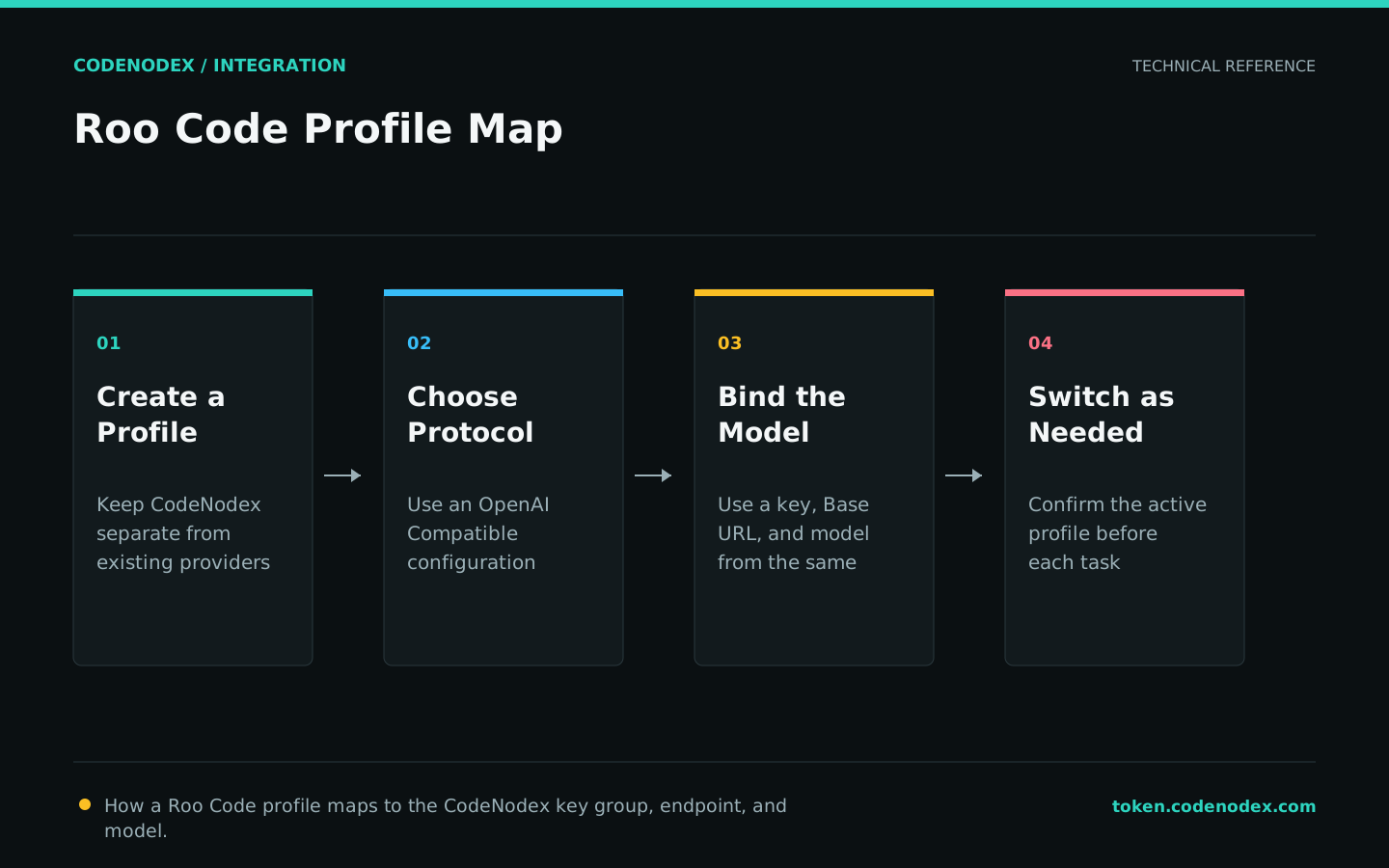
In Roo Code Provider Settings, choose OpenAI Compatible, use https://token.codenodex.com/v1 as the Base URL, paste the API key, and enter the exact model ID.
Override advanced values such as context window or maximum output only when the model limits are known. Incorrect custom limits can truncate responses early and make the gateway appear to return incomplete output.
- 01Create a profileOpen Provider Settings and select OpenAI Compatible.
- 02Enter the endpointSet Base URL to
https://token.codenodex.com/v1. - 03Enter credentialsUse a CodeNodex API key and an exact model ID.
- 04Save and activateSave the profile and confirm that the current session uses it.
Validate the endpoint outside Roo Code first
Query the model list with the same key so a gateway permission issue is not mistaken for a Roo Code profile problem. After a successful response, copy the model ID directly from it.
If a corporate proxy or local certificate policy can affect VS Code, run the command on the same machine to verify the actual network path.
curl --fail-with-body "https://token.codenodex.com/v1/models" -H "Authorization: Bearer YOUR_API_KEY"Validate chat, editing, and command execution in layers
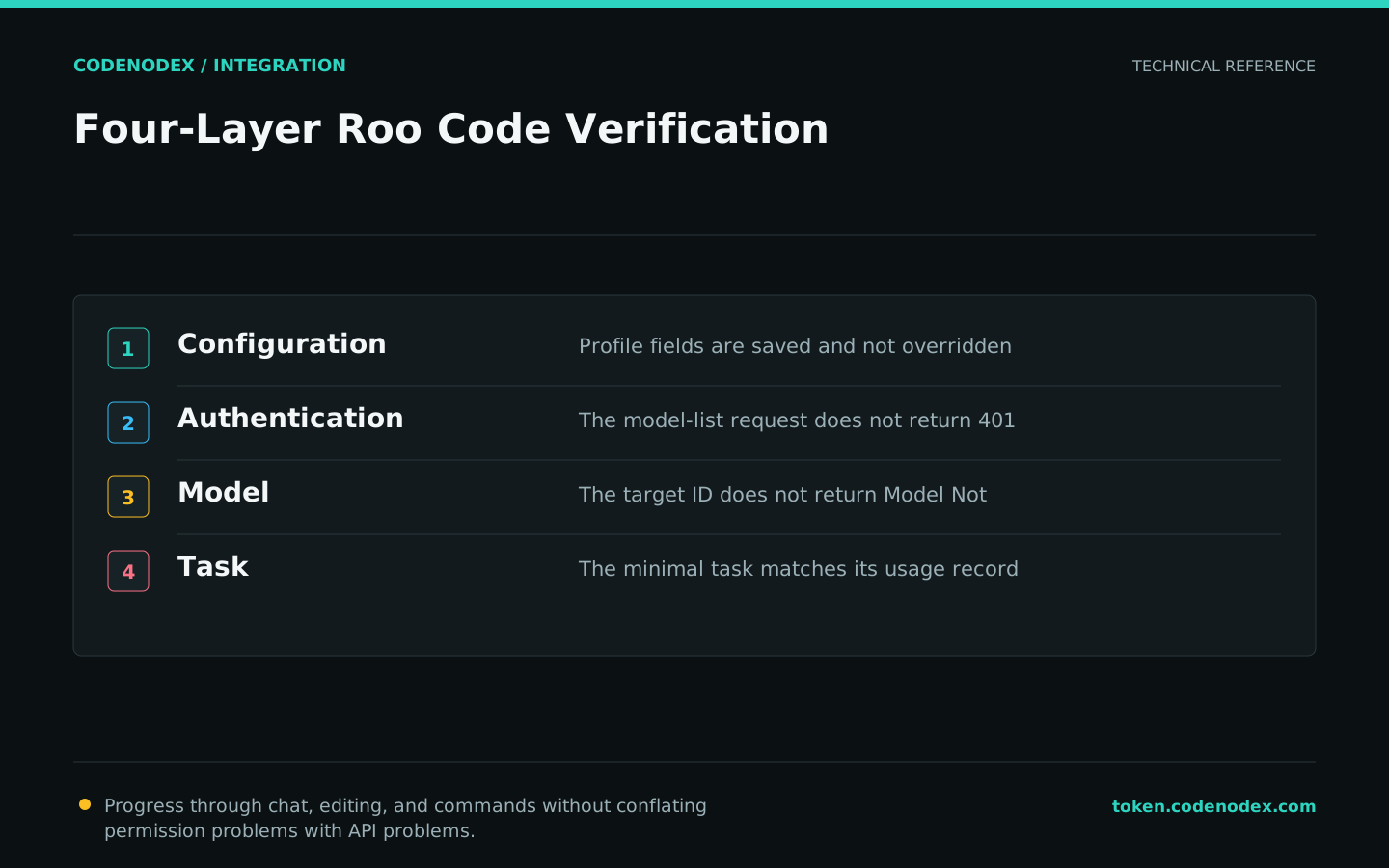
Start with read-only Q&A, then test a single-file edit, and finally test command execution. At every layer, verify the active Roo Code profile and the corresponding CodeNodex usage record.
Roo Code modes and tool permissions are client behavior; the API key does not control them automatically. Keep human confirmation enabled in production repositories and review every file diff.
- A successful read-only explanation confirms the basic conversation path.
- A correct single-file patch confirms that structured output and context work.
- End-to-end verification is complete only when the test command exits with code zero.
Troubleshoot model, path, and permission issues
For Model not found, first check capitalization and the model ID. For 404, check that the URL was not entered as /v1/chat/completions. For 401, check key status. For 429, check balance and concurrency.
If basic conversation works but tool calls fail, the issue is usually the Roo Code mode, permissions, or the model's tool support. Do not keep changing the Base URL.
Official sources and verification scope
This guide is based on public official documentation. Commands and configuration may change between client versions, so verify the linked sources before use.
View documentation scope